
Your PS5 GTA 6 Clip Won't Play? Blame WebM, Then Fix It
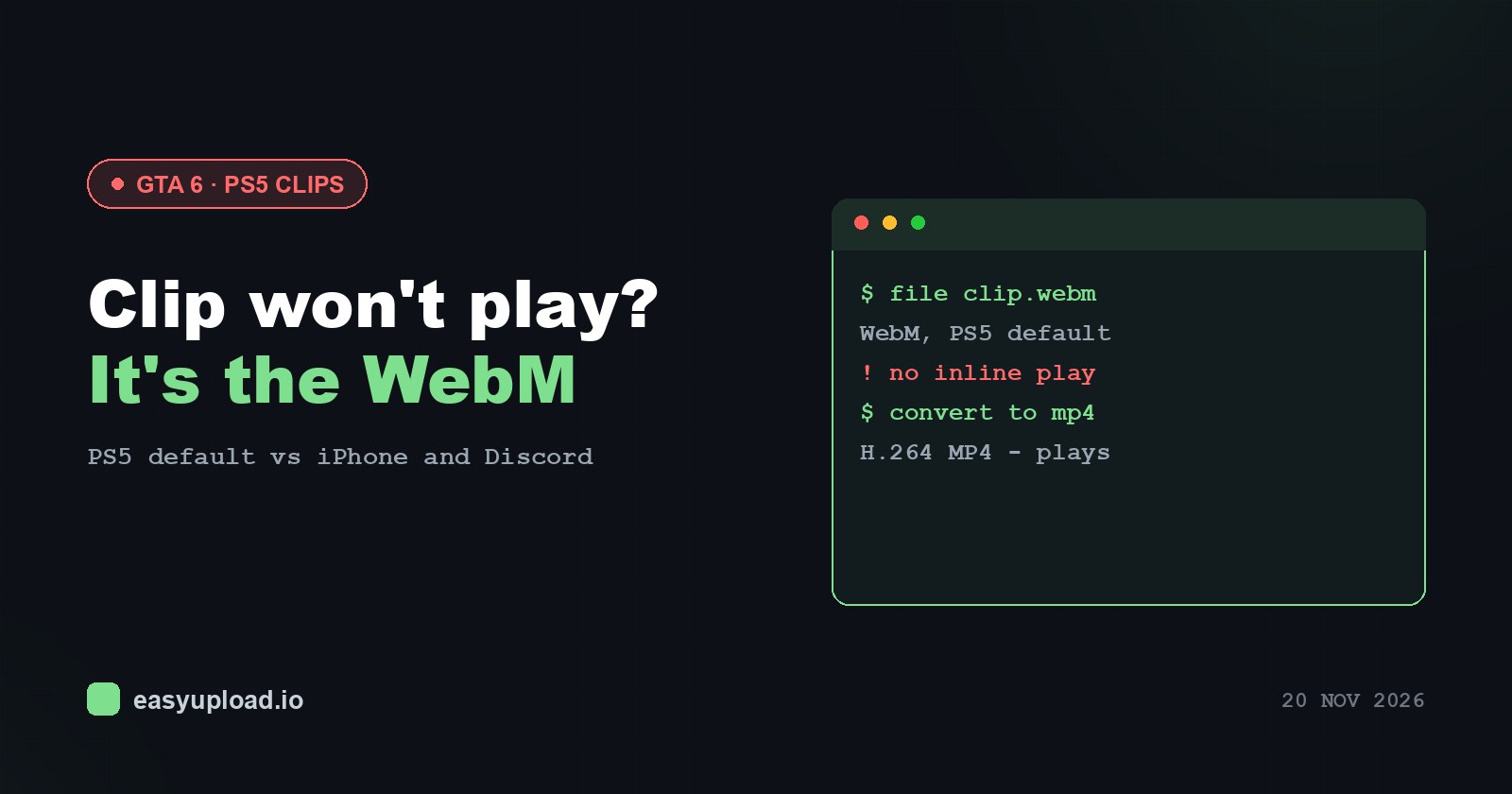
GTA VI came out on PlayStation 5 and Xbox Series X|S on 19 November 2026, and by the next morning group chats were full of the same complaint. Someone pulls off a perfect getaway, saves the last minute, sends it over, and the friend on the other end gets a gray icon, a “this file can’t be opened” message, or a Discord attachment that only offers a download button. In most of these cases the clip is fine. The container is the problem.
The short version: your PS5 records WebM
Out of the box, the PS5 saves video clips in the WebM format. Sony picked it for a reasonable reason: WebM files are smaller, which matters on a console where the game alone asks for 212 GB of free space. The catch is where those files end up.
| Where you send the clip | WebM from PS5 | MP4 (H.264) |
|---|---|---|
| iPhone Photos app | Does not play | Plays |
| Discord message | Often arrives as a download | Plays inline |
Discord’s own attachment rules are specific here. It plays MP4 and MOV files encoded with H.264, HEVC or AV1. A WebM file is not on that list, so Discord frequently treats it as a generic file. Your friend can still download it, but nobody in a busy channel is going to.
Step 1: Make every new clip an MP4
This setting fixes the problem going forward, and it lives in one menu on the console:
- Open Settings on the PS5 home screen.
- Go to Captures and Broadcasts.
- Open Captures.
- Select Video Clip Format and choose MP4.
From now on, new clips are written as MP4. One detail that trips people up: the switch is not retroactive. Every clip you recorded before changing it stays WebM, including the ones from launch night you actually care about.
While you are in that menu, look at the audio settings too. If party voice chat is enabled for captures, your friends’ voices are recorded into the clip. That is fine if they agreed to it. If they did not, turn it off before your next session rather than after the clip is already posted.
Step 2: Get the clip off the console
You cannot convert what is still sitting on the PS5. The quickest path for most people is the PlayStation App:
- On the console, open Settings > Captures and Broadcasts > Captures and turn on Auto-Upload.
- Keep the PS5 in rest mode with Stay Connected to the Internet enabled.
- In the PlayStation App on your phone, open Library > Captures and tap Download.
Auto-upload only covers clips recorded after you turn it on. For older clips, open the Media Gallery on the PS5 and choose Upload to PlayStation App. The app accepts clips up to 3 minutes long and up to 1080p, keeps them for 14 days, and does not require PS Plus. The phone route is covered in more detail on the PS5 clips to phone page. 4K clips and anything longer than 3 minutes have to go over a USB drive instead, which is a separate topic.
Step 3: Convert the old WebM clips to H.264 MP4
Once the WebM file is on your phone or computer, open the PS5 WebM to MP4 converter and drop the file in. The output is always MP4 with H.264 video and AAC audio, which is the combination that plays in iPhone Photos and as an inline player in Discord.
The conversion runs in your browser. The clip is not uploaded anywhere unless you later choose to send it as a link yourself.
Be realistic about what conversion is. It re-encodes the video, and every re-encode drops a little detail. For a short crash that nobody will pause frame by frame, you will not notice. If you need a pristine original for editing, keep the WebM and send that file itself.
Step 4: Trim and send
A converted clip can still be too large for a chat. On a free Discord account, the biggest file you can attach is 20 MB, and Discord checks that size before anything else happens, so a 21 MB clip is simply refused. The GTA 6 clip sharing tool lets you cut out just the moment and either fit it under 20 MB or send it as a link.
A free LimeWire link, with or without an account, carries a file of up to 4 GB and stays live for 3 days. That is enough for a friend to watch the full clip without recompression. Pro raises the file size to 250 GB and Pro Plus to 500 GB, with an expiry you set yourself.
A note from an old file-sharing name
Back in the peer-to-peer era, the LimeWire experience was downloading a file called “final_FINAL.avi” and finding out what it actually was only after it finished. We are happy to report that the modern version of this problem is just a container format, and it has a menu setting.
The rest of our GTA-related tools, all of them general video utilities with no connection to Rockstar or Take-Two, live on the GTA 6 tools hub. Share your own gameplay; links to leaks or pirated copies get removed.